Users & licensing
Everything on this page is admin-only: it needs the system admin role, and it applies install-wide, not to one company. A bookkeeper account never sees this section.
Admin → Users, two tabs: the account list itself, and the license key that governs how many of them you're allowed to have.
Users tab
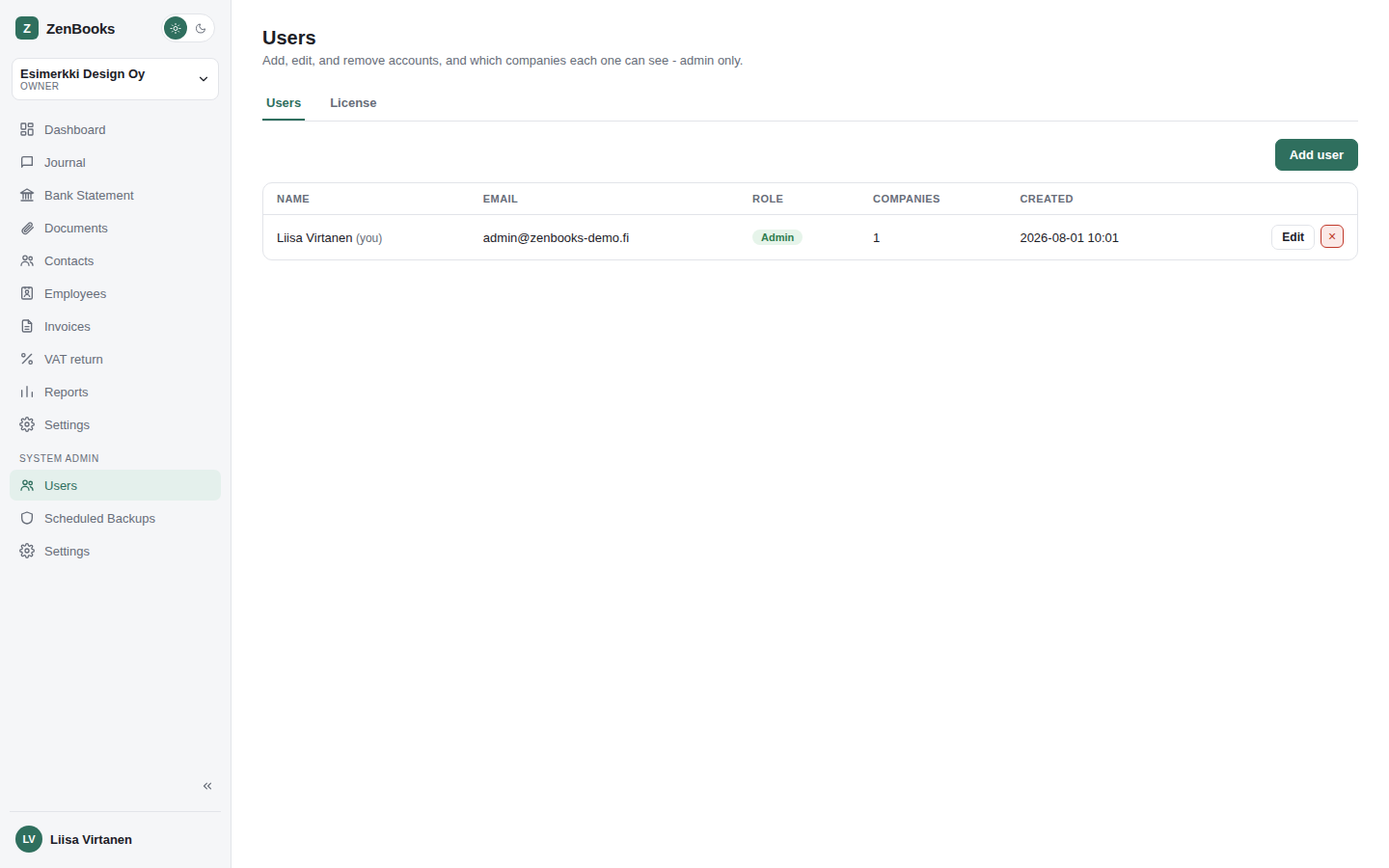
A table of every user on the install - name, email, role badge, how many companies they can access, and when the account was created.
Roles
- Admin - full access, including this whole Admin section.
- User - ordinary access, governed per company by the access list below.
- Viewer - read-only everywhere, regardless of the company roles granted - can never create, edit, or delete anything, in any company.
Company access
Adding or editing a user includes a per-company checklist, granting one of three roles on each company independently: Owner, Accountant, or Viewer. A user can be an owner of one company and have no access at all to another.
Editing a user's name, email, role, or password all happen here too - a password field left blank on edit keeps the existing password unchanged. A user can be deleted (except your own account, to avoid ever locking yourself out).
License tab
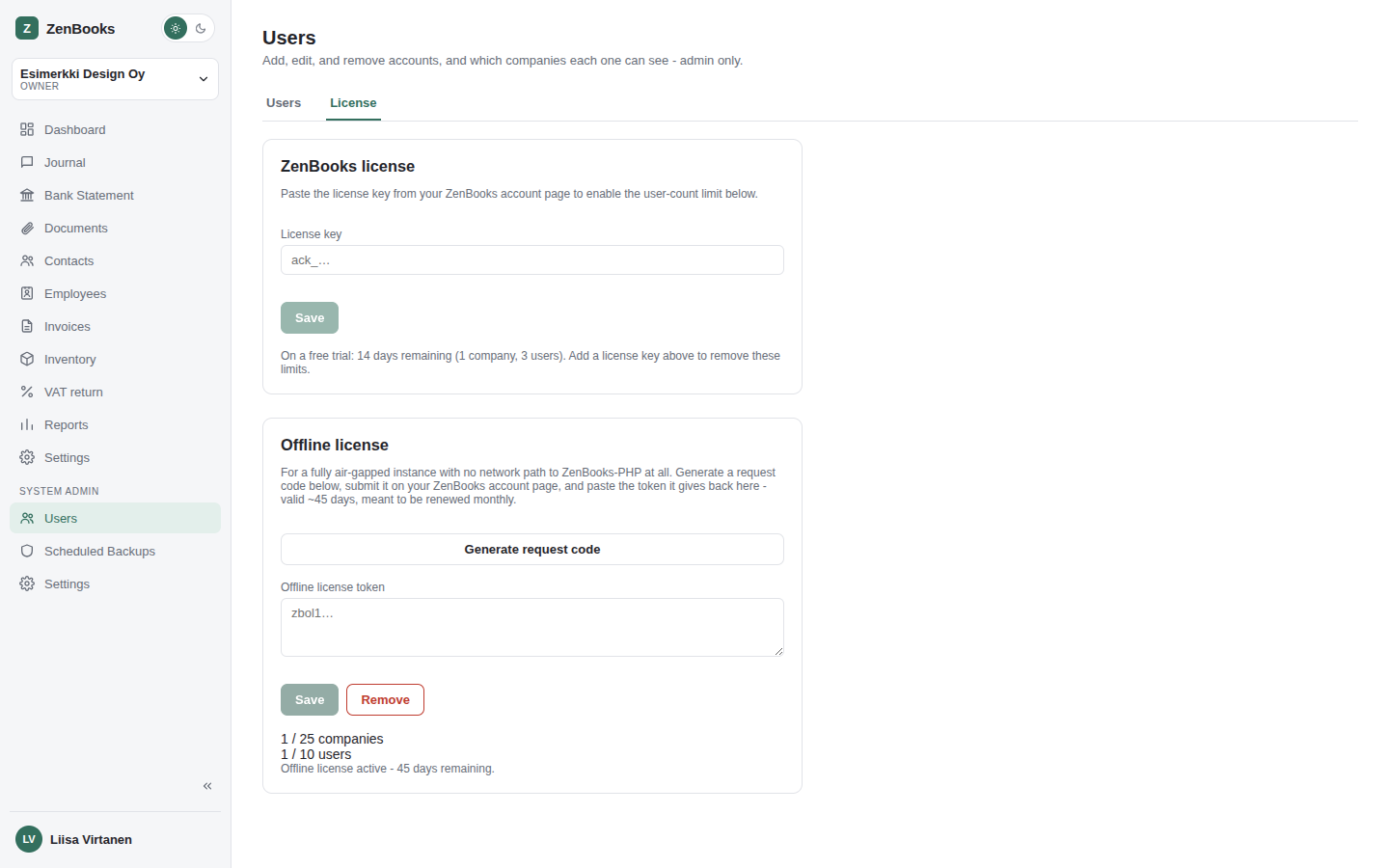
Paste or update the license key here (masked once saved - leave the field blank to keep the existing one), and use Re-check now to force an immediate check instead of waiting for the next automatic one. Below that: how many instances/companies/users the key allows versus how many are actually in use, when it was last checked, the last error if any, and trial status if no key is set at all.
How license checking works
A background check runs automatically every few hours (plus once immediately whenever you save a new key or hit Re-check). If it fails, the license banner appears as a warning right away - not after a delay - and stays a dismissible warning as long as the failures continue.
Read-only mode. If checks keep failing for 7 full days straight, the install locks into read-only mode: viewing and reading data keeps working everywhere, but creating or editing anything is blocked - except the License tab itself and the Vendor & Vero settings page, both deliberately left open so an admin can actually fix the underlying problem (a wrong license server URL, expired key, network issue) without being locked out of fixing it. The moment a single check succeeds again, read-only mode lifts immediately and automatically - no manual unlock step.
Trial mode
An install with no license key runs on a 14-day free trial instead (1 company, 3 users - see First-time setup). This tab shows the days remaining, or a clear "trial expired" message once it runs out - at which point normal sign-in is blocked until a real license key is added.
Usage & registered installs
Your ZenBooks account page tracks every self-hosted install running against your license key - online or offline - and how many companies/users each one has.
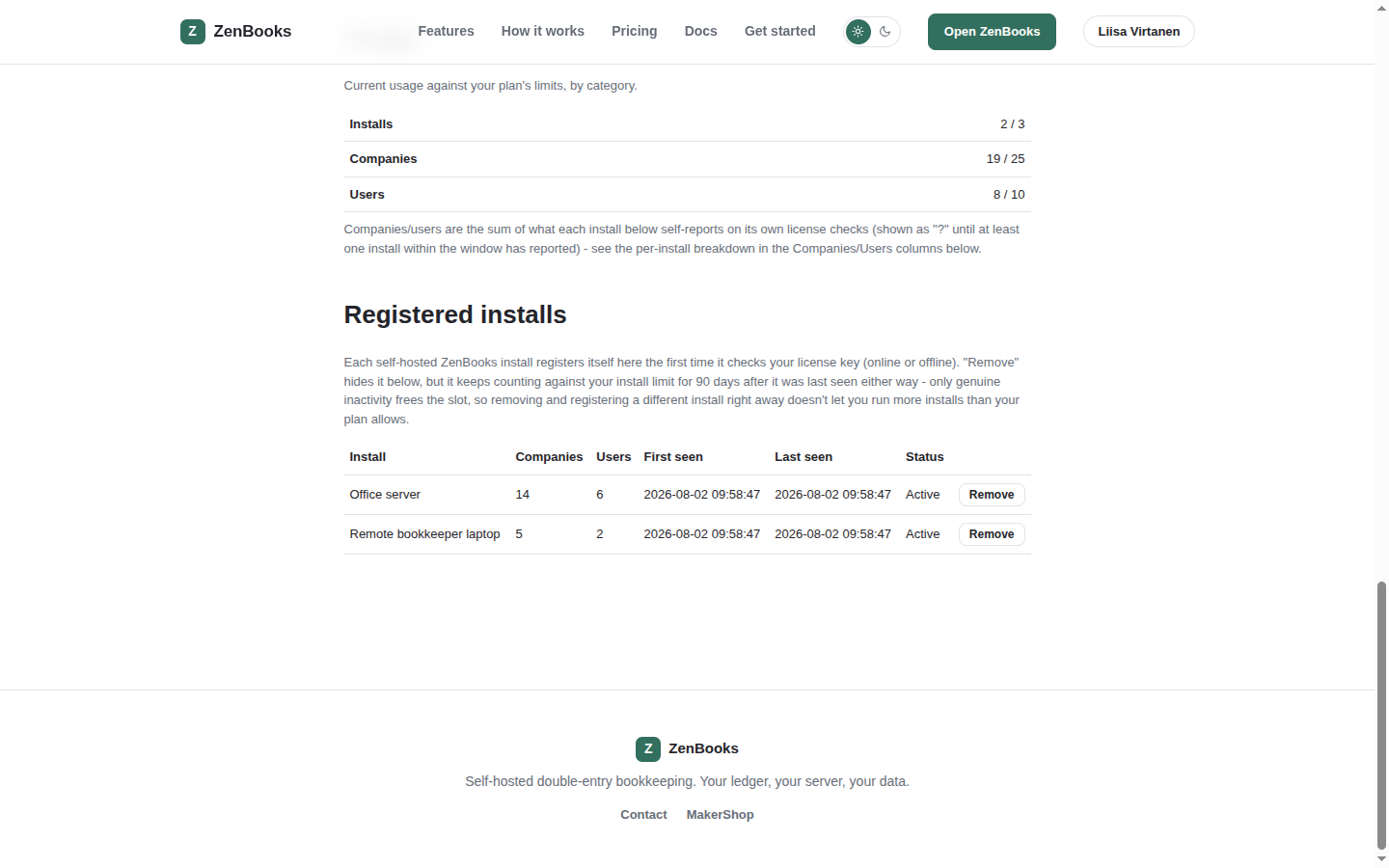
Usage sums companies and users across every currently-counted install, since each install is its own separate ZenBooks database - a Pro plan running one install with 14 companies and a second with 5 shows 19/25, not either number alone. Registered installs breaks that same total down per install, along with when each one was first/last seen.
Removing an install doesn't free its slot right away. "Remove" hides it from active use, but it keeps counting against your install limit for 90 days after it was last seen either way - only genuine inactivity frees the slot. Otherwise removing an install and immediately registering a different one would let you run more concurrent installs than your plan allows. Checking in again with the same install id (even after removing it) always works instantly and un-removes it - only a genuinely new install id can be turned away, and only once the limit is actually full.
Offline / air-gapped licensing
If this install has no network path to ZenBooks-PHP at all, the license key above can never be checked - use an offline license token instead. It's a signed, self-contained grant that's verified entirely locally, no outbound request involved, at the cost of needing to be renewed by hand roughly monthly rather than checking in on its own.
- On this install, click Generate request code in the Offline license card above. It produces a short code that just says which install this is and how many users/ companies it currently has - copy it.
- On your ZenBooks account page, paste that code into its own "Offline license" section and click Generate offline license.
- Copy the token it gives back (shown once) into the Offline license token field above and save.
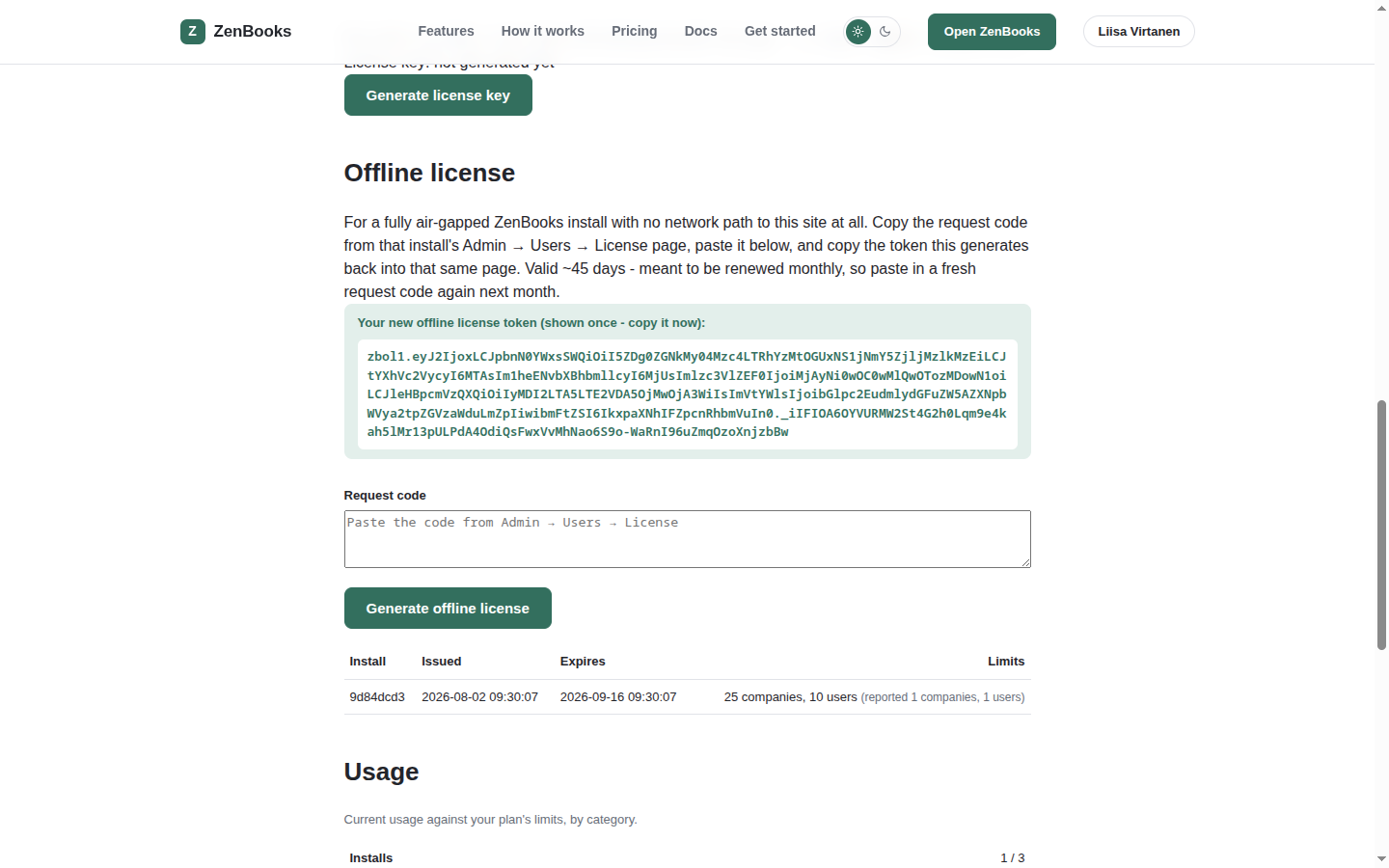
The token is valid for ~45 days - the extra couple of weeks past a strict 30-day month is deliberate slack, so being a few days late renewing it doesn't lock you out. Repeat the same three steps next month with a fresh request code. An expired offline token blocks sign-in the same way an expired trial does, unless a working online license key is also configured.
Requires an active paid plan on your ZenBooks account - not available while on a free trial there. The limits granted always come from that plan, never from the counts in the request code, so there's no way to inflate them by fudging the numbers before generating a token. The install still counts against your plan's install limit exactly like an online one does.