Settings
Everything about how one company is configured, as a row of tabs. This is per-company (switch companies with the sidebar's company switcher and Settings shows that company's own configuration) - for install-wide, admin-only setup, see the separate Admin section instead.
Company
Legal and contact details - name, business ID, VAT number, address, phone, email, website - plus the chart of accounts scope (how much of the official Finnish chart shows up when picking an account elsewhere in the app; accounts you've added yourself always show regardless of scope).
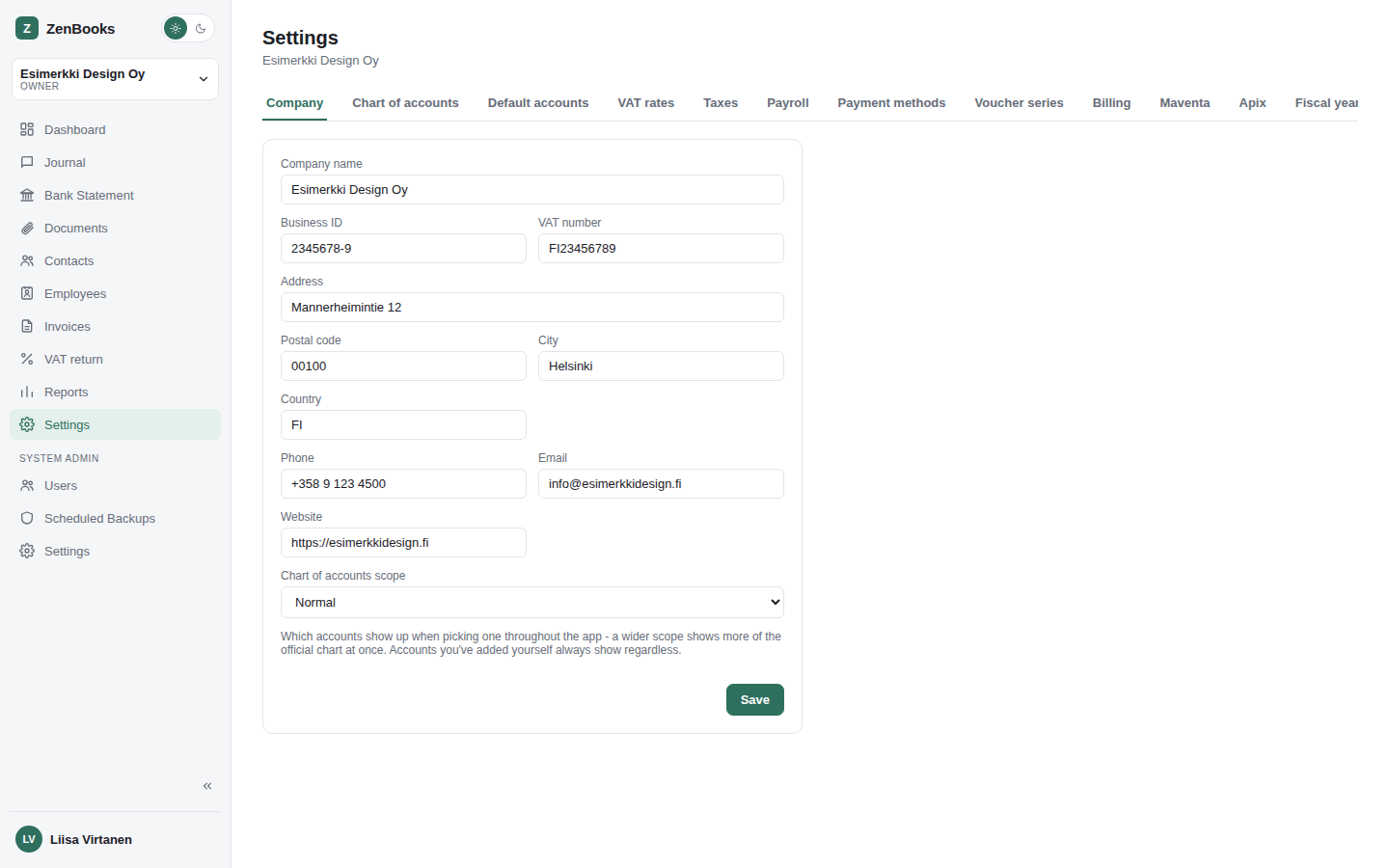
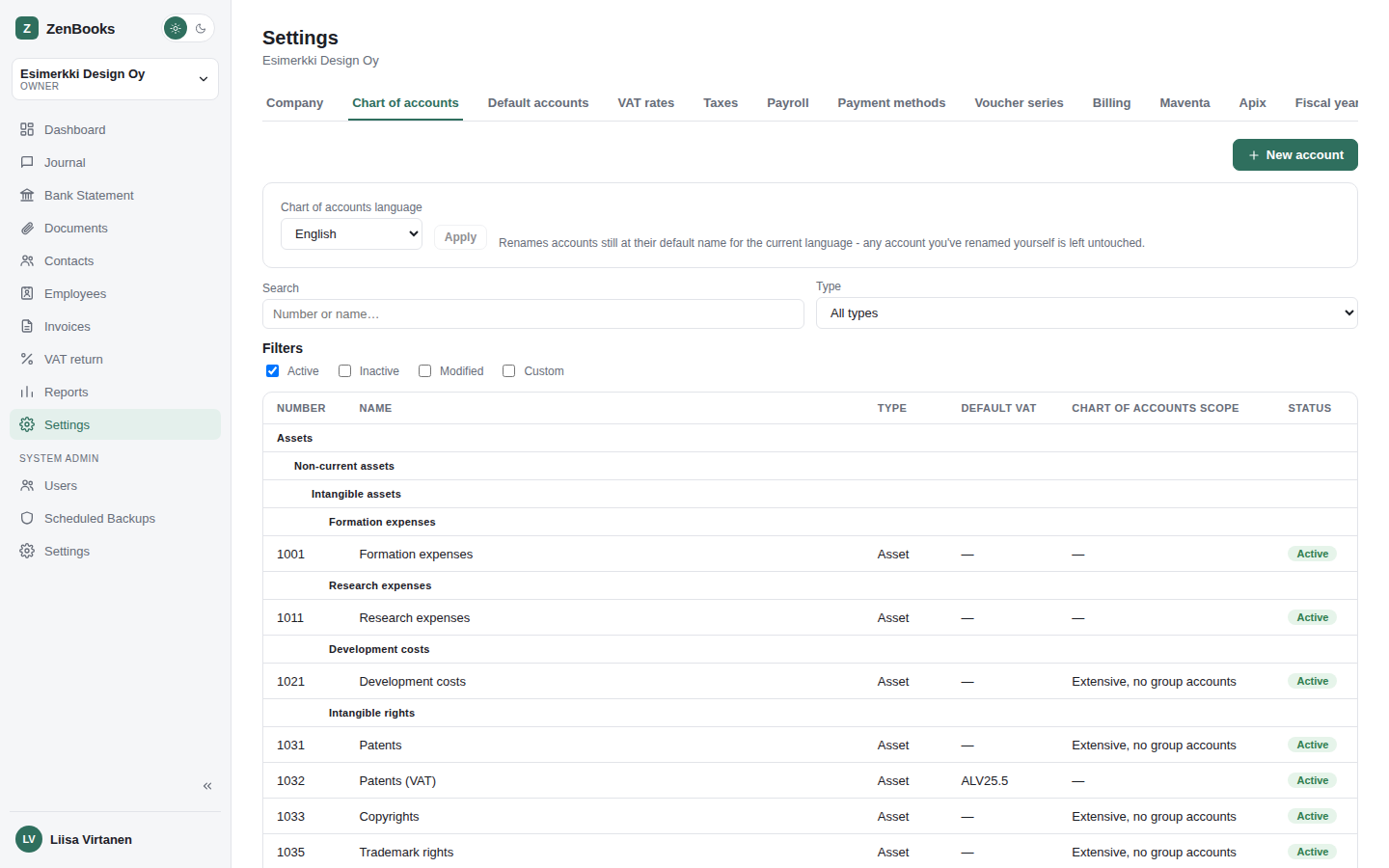
Chart of accounts
The full account list editor - add, rename, or deactivate accounts, and set each one's own scope level individually.
Default accounts
Maps each voucher type (expense, income, sales invoice, salary, and the rest) and each bank-import category (card purchase, service fee, interest income/expense) to a default ledger account, so new vouchers and bank import matches auto-fill instead of asking every time.
VAT rates
The company's own VAT rate list - each rate has a percentage and a filing "class" (domestic, intra-EU, and so on) that determines where it lands on the VAT return.
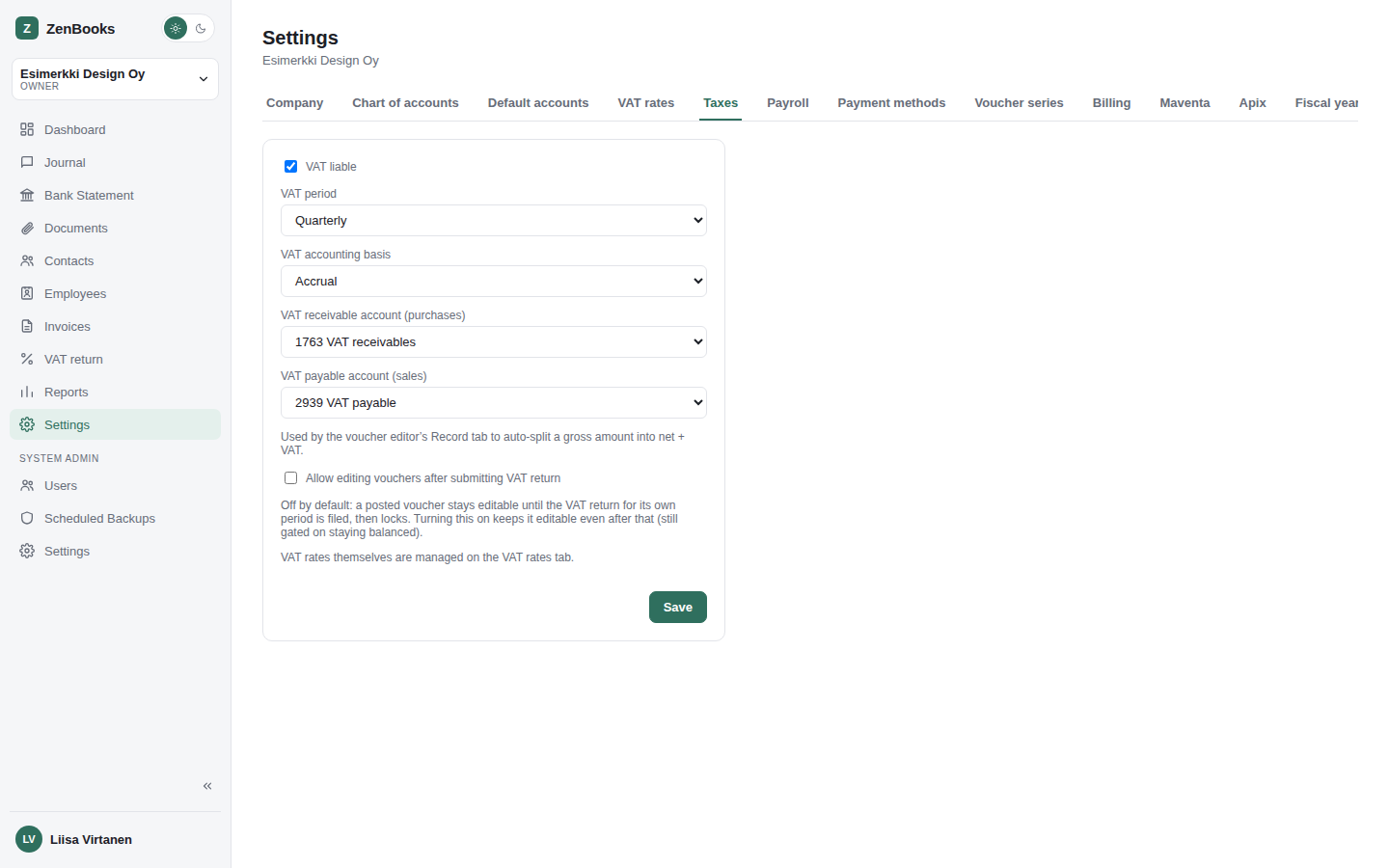
Taxes
Whether the company is VAT-liable at all, its VAT period (monthly/quarterly/annual), accounting basis, which accounts receivable/payable VAT posts to, and whether vouchers can still be edited after a VAT return has already been filed for that period.
Payroll
Company-wide payroll defaults that feed salary-type vouchers and employee records.
Payment methods
The list of payment methods (cash, card, bank transfer, and so on), split by direction (incoming / outgoing), each linked to the ledger account it should post to.
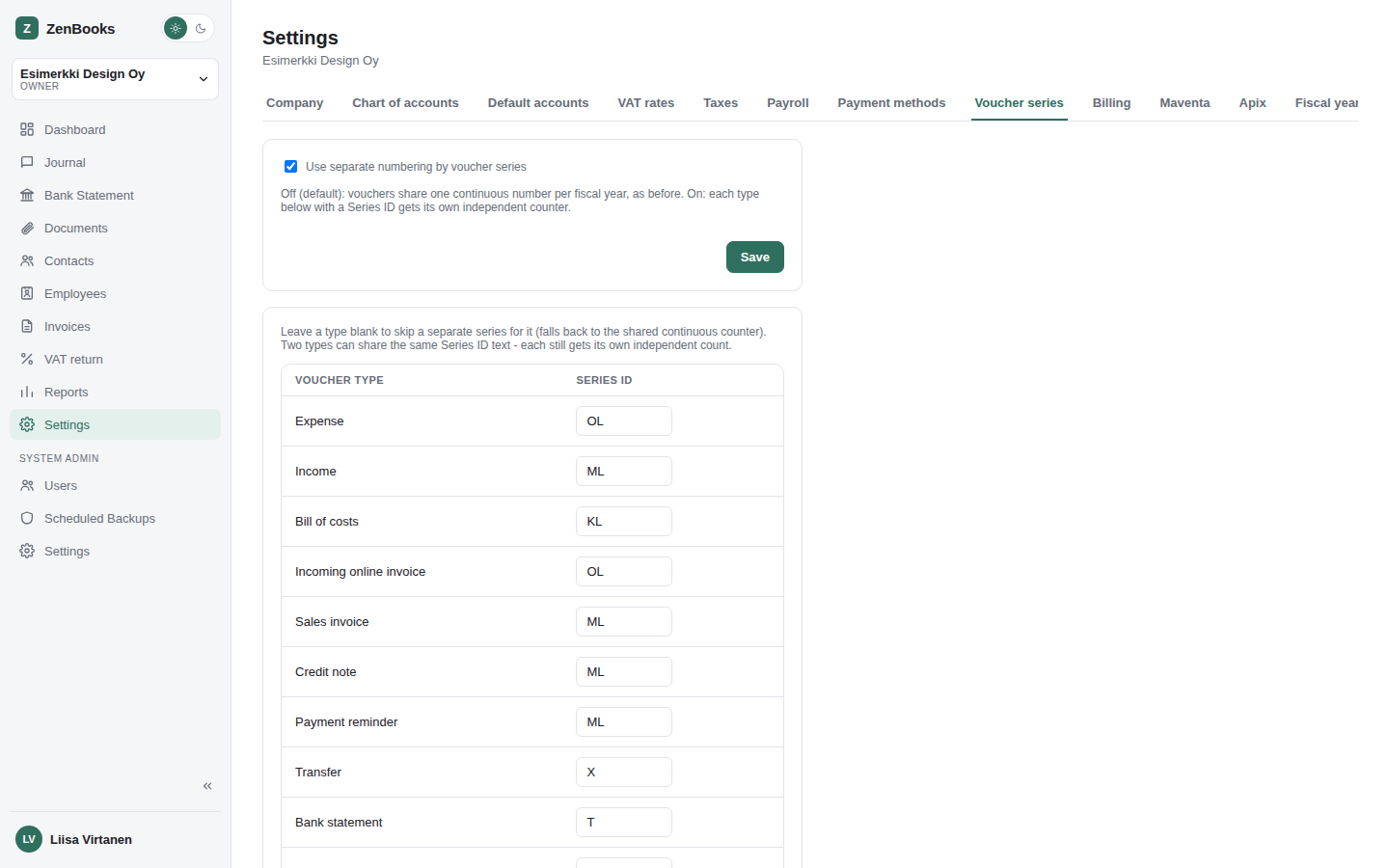
Voucher series
Turn on numbered voucher series and assign a series code per voucher type - e.g. every sales invoice voucher gets a shared prefix distinct from manual journal entries.
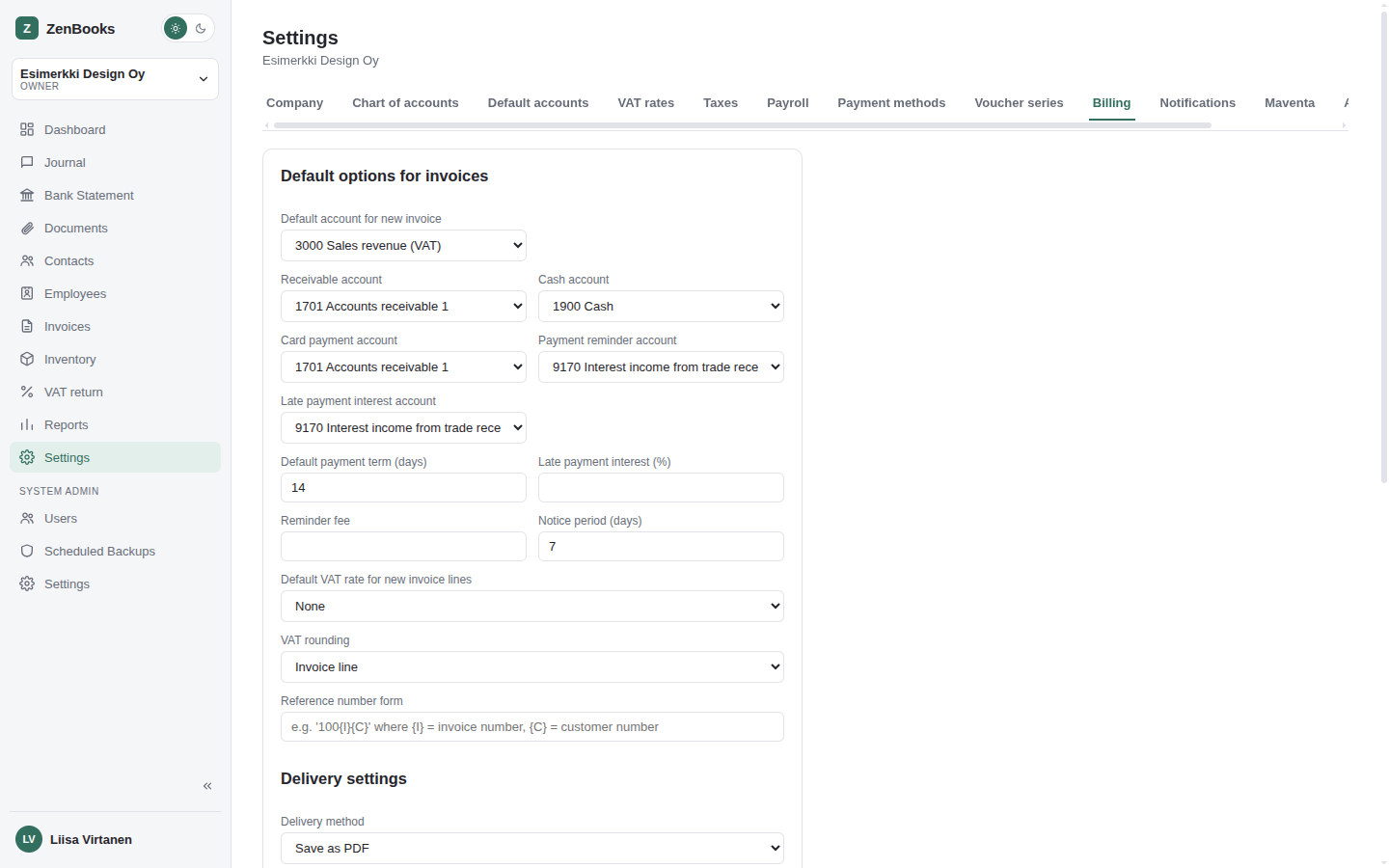
Billing
Invoicing defaults: the account pre-selected on every new invoice line, and which accounts receivable/cash/card/reminder/late-fee amounts actually post to - receivable/cash/card when an invoice is sent or a payment is recorded, reminder/late-fee when a payment reminder is generated (see Invoices → Overdue & payment reminders). Also: payment term days, late fee percentage, reminder notice period, the default VAT rate for new invoice lines, and the reference-number format. Every account field here starts pre-filled with a sensible conventional account (freely changeable) as soon as the company is created.
Delivery settings picks one of Save as PDF / Print invoice / Send via email / Send via e-invoice - whichever is chosen decides what the invoice editor's Save-and-send button is labeled and what it actually does once an invoice is sent (see Invoices → Draft → sent → paid). Print settings below it covers barcode, QR code, virtual barcode, and bank-transfer details for the printed invoice PDF, plus the logo and default footer/reminder text.
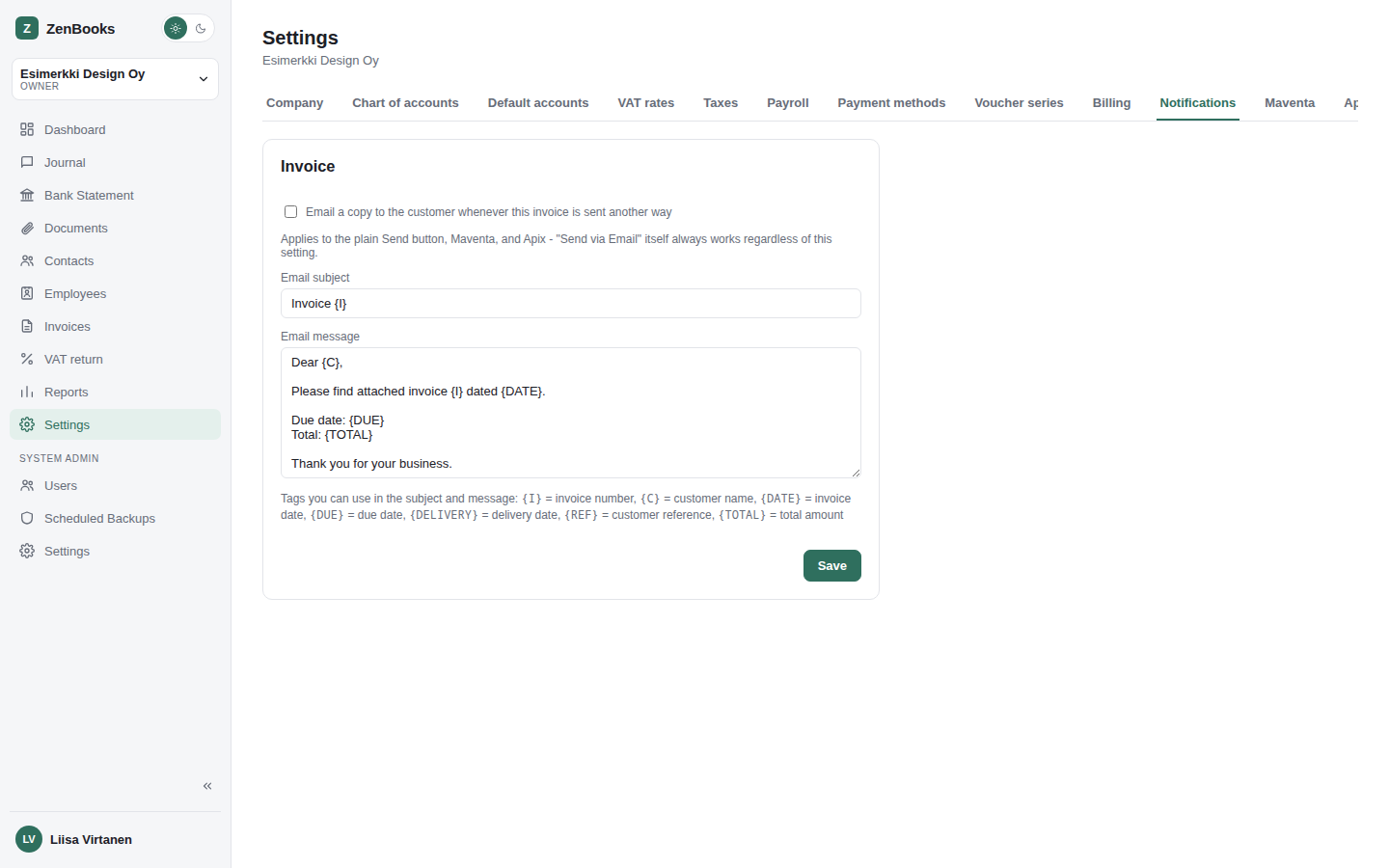
Notifications
One "Invoice" card: a checkbox to also email a copy of an invoice to its customer whenever it's
sent any way other than the "Send via Email" button itself (the plain Send button, Maventa, or
Apix) - "Send via Email" always works regardless of this checkbox - plus the subject and message
that email uses. Use tags anywhere in either field to pull in invoice details:
{I} invoice number, {C} customer name, {DATE} invoice
date, {DUE} due date, {DELIVERY} delivery date, {REF}
customer reference, {TOTAL} total amount. Sending email at all requires an admin to
configure one outbound relay for the whole install first - see
Admin → Settings → Email.
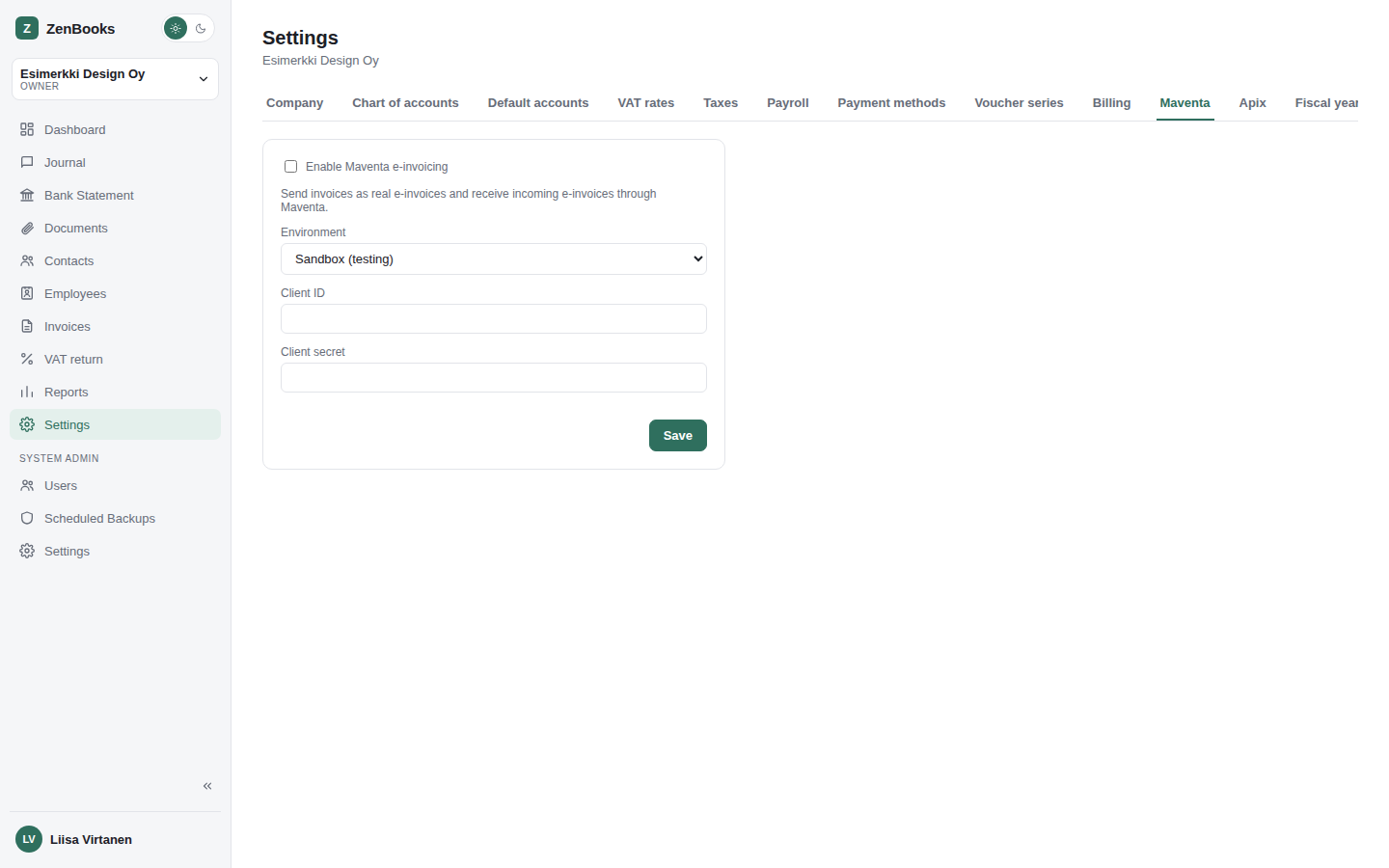
Maventa
Enable and configure Maventa e-invoicing - sandbox or production environment, client ID/secret, and a connection test button. Powers both sending invoices electronically (Invoices) and receiving them (Incoming invoices).
Apix
The same idea as Maventa, for the Apix e-invoicing operator instead - a second, independent network a company can enable alongside or instead of Maventa.
Fiscal years
Add and list the company's fiscal year date ranges - reports and the dashboard's year picker both depend on these being set up correctly, including for a first fiscal year that doesn't start in January.
Connection
Only visible when running ZenBooks as a packaged desktop or mobile app (Electron/Capacitor), not in an ordinary browser. Lets that packaged client point at a different backend server URL - saving reloads the app against the new address.