Invoices
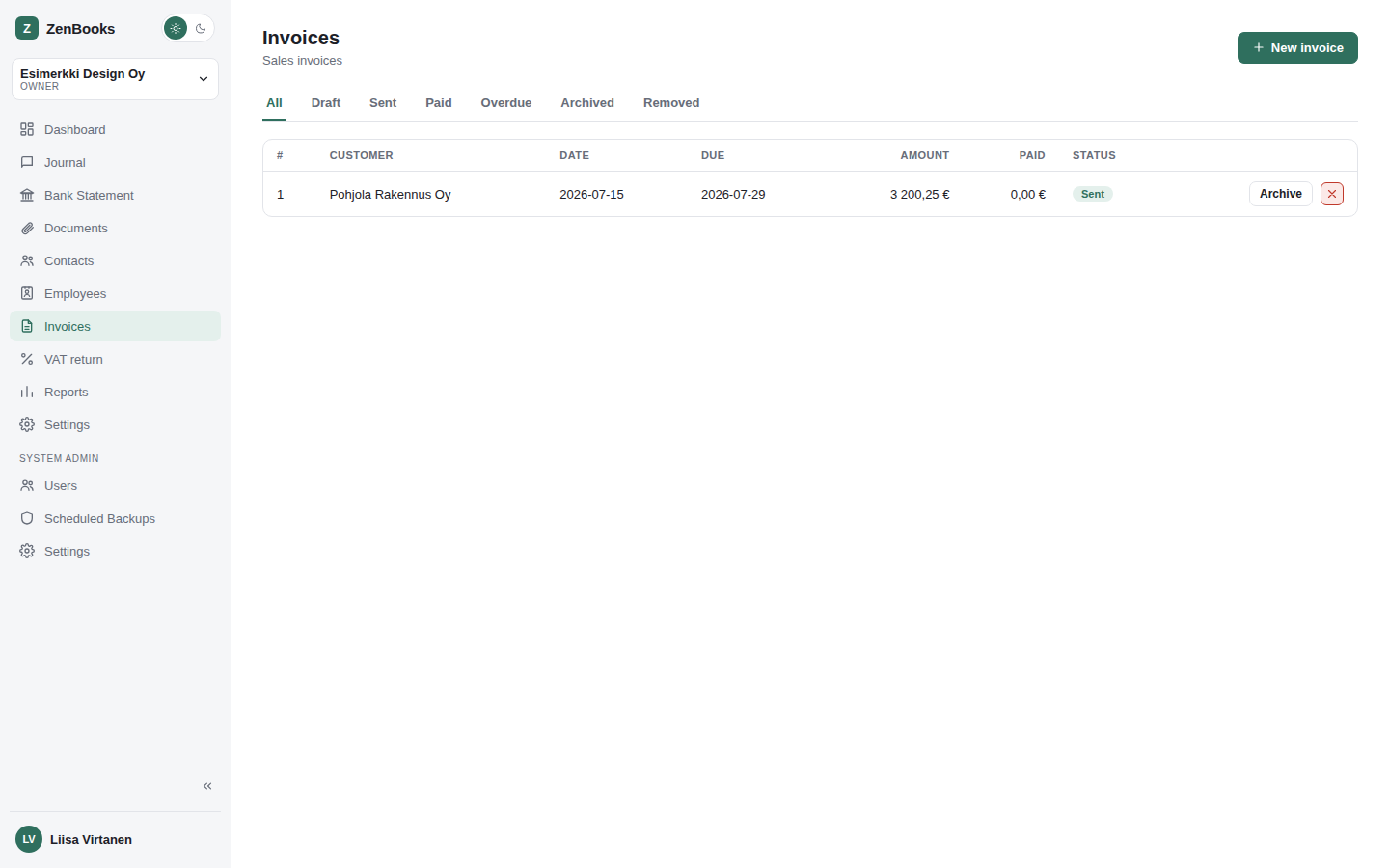
Sales invoices and credit notes, from draft through paid - including payment reminders and email delivery.
Creating an invoice
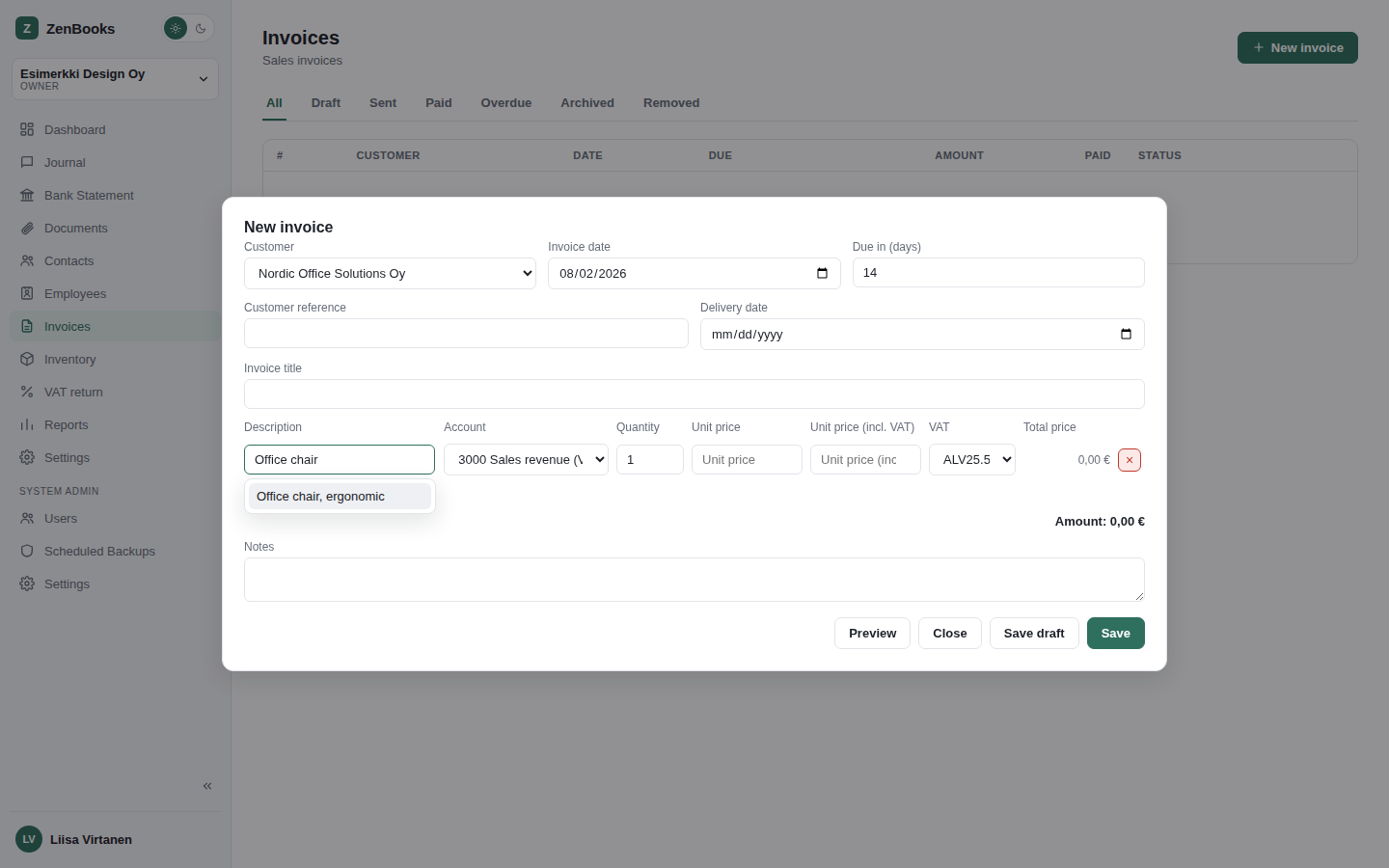
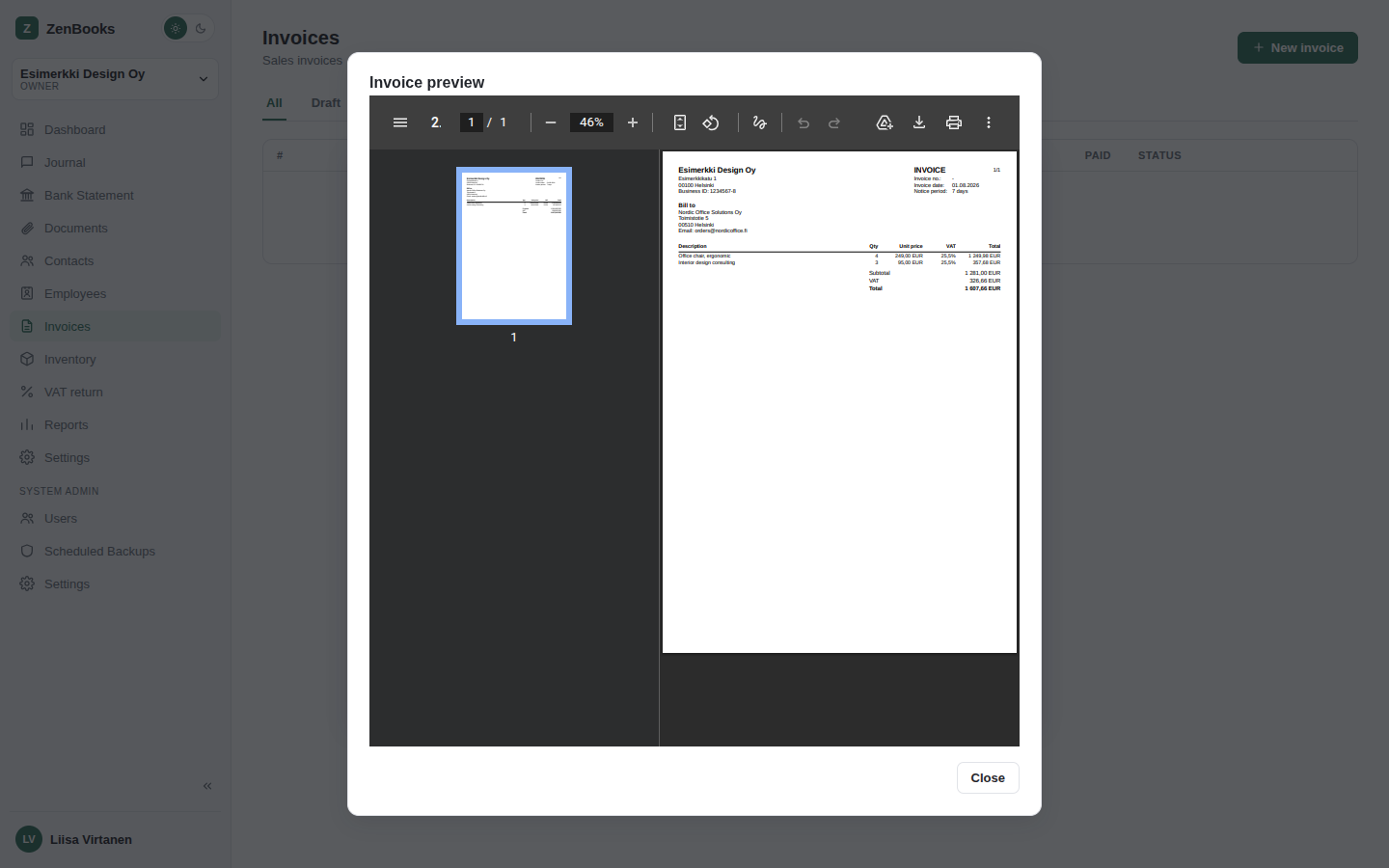
Pick a contact, an invoice date, and a due period, then add lines - description, account, quantity, unit price (shown both excl. and incl. VAT, kept in sync however it's entered), and a VAT rate per line (Settings → VAT rates). Each line's description field doubles as a live search over the Inventory catalog - start typing and matching products/services appear as suggestions underneath; press Enter on a highlighted one to pick it, pre-filling that line's description/price/VAT/account from the item's own defaults, still freely editable afterward. Typing something that matches nothing, or just never pressing Enter, is plain free text instead, exactly as before this feature existed. Each new line starts on the account set as Settings → Billing's "Default account for new invoice"; picking a different account there automatically switches that line's VAT rate to match, if the chosen account has one of its own set (Settings → Chart of accounts). Totals, VAT, and the grand total compute as you go - collapsing to a single "Amount" line instead of a separate VAT/Total breakdown when no line on the invoice carries VAT at all. Defaults for reference-number format, payment terms, and which accounts the invoice posts to all come from Settings → Billing, so a new invoice needs the least possible manual entry. A "Preview" button renders the invoice exactly as it'll look, from whatever's currently in the editor - including unsaved changes, and even before the invoice has been saved at all - without creating or changing anything.
Draft → sent → paid
A draft can be freely edited. Sending it assigns a permanent invoice number and generates the matching accounting voucher automatically (visible in Journal), every time, regardless of delivery method. What the Save-and-send button is actually labeled - and what it does after that - follows Settings → Billing's "Delivery settings": Save downloads the PDF, Save & print opens the browser's print dialog with it, and Save & Send (for either Email or E-invoice) actually delivers it right away - by email or via Maventa/Apix, whichever is configured. Whichever method is chosen, the standalone Download PDF button and the per-channel Send via Email/Maventa/Apix actions further down stay available regardless, for a manual copy or a retry. Recording a payment means choosing whether it came in as cash or by card, then posts its own voucher too - debiting the Cash or Card account from Settings → Billing and crediting Receivable back down - moving the invoice toward paid. Partial payments are supported, and the Dashboard's Receivables figures track whatever's still open.
Overdue & payment reminders
A sent invoice still unpaid past its due date moves to Overdue on its own (checked hourly) - the Invoices page's Overdue tab picks it up automatically. Once the due date is at least as far behind as Settings → Billing's notice period, the invoice's own editor shows a "Payment reminder" panel: pick a reminder date and a new due date, optionally charge a flat reminder fee and/or percentage-based late-payment interest (both suggested automatically from Settings → Billing, both editable), and send it. A charged reminder posts its own voucher, crediting the reminder/late-fee accounts from Settings → Billing; a reminder with no charge just records the notice itself. Every reminder sent is listed on the invoice with its own downloadable PDF - the same layout as the original invoice, with the reminder fee/late-fee interest added as extra rows and the new due date and total carried through everywhere, including the payment barcode/QR section.
Credit notes
A credit note reverses a previously sent invoice, in full or in part.
Printed/PDF options
Barcode, QR code, virtual barcode, and Finnish bank-transfer reference details on the printed invoice are all toggled in Settings → Billing, along with the logo and default footer/reminder text.
E-invoicing
If Maventa or Apix is enabled (Settings), an invoice can be sent as a real e-invoice instead of a PDF - see Incoming invoices for the receiving side of that same integration.
Sending by email
A "Send via Email" button on any sent invoice emails the PDF straight to the customer, using the subject/message template from Settings → Notifications. That same tab's checkbox can also send an automatic copy whenever the invoice ships some other way instead (the plain Send button, Maventa, or Apix) - "Send via Email" itself always works either way. Both need an admin to configure outbound email once for the whole install first - see Admin → Settings → Email.